


USB C to HDMI Cable: Everything You Need to Know
USB C to HDMI Cable: Everything You Need to Know
A USB-C to HDMI cable is a must-have accessory for anyone looking to connect modern USB-C devices to HDMI-enabled displays like monitors, TVs, or projectors. Ideal for watching movies, gaming, multitasking, or giving a presentation, this cable ensures smooth transmission of both high-definition video and crystal-clear audio through a single connection. In this guide, we’ll take a deeper dive into what a Type-C to HDMI cable is, its advantages, how to select a suitable option, and troubleshooting tips for issues such as “no signal” or flickering screens.
What Is a USB-C to HDMI Cable?
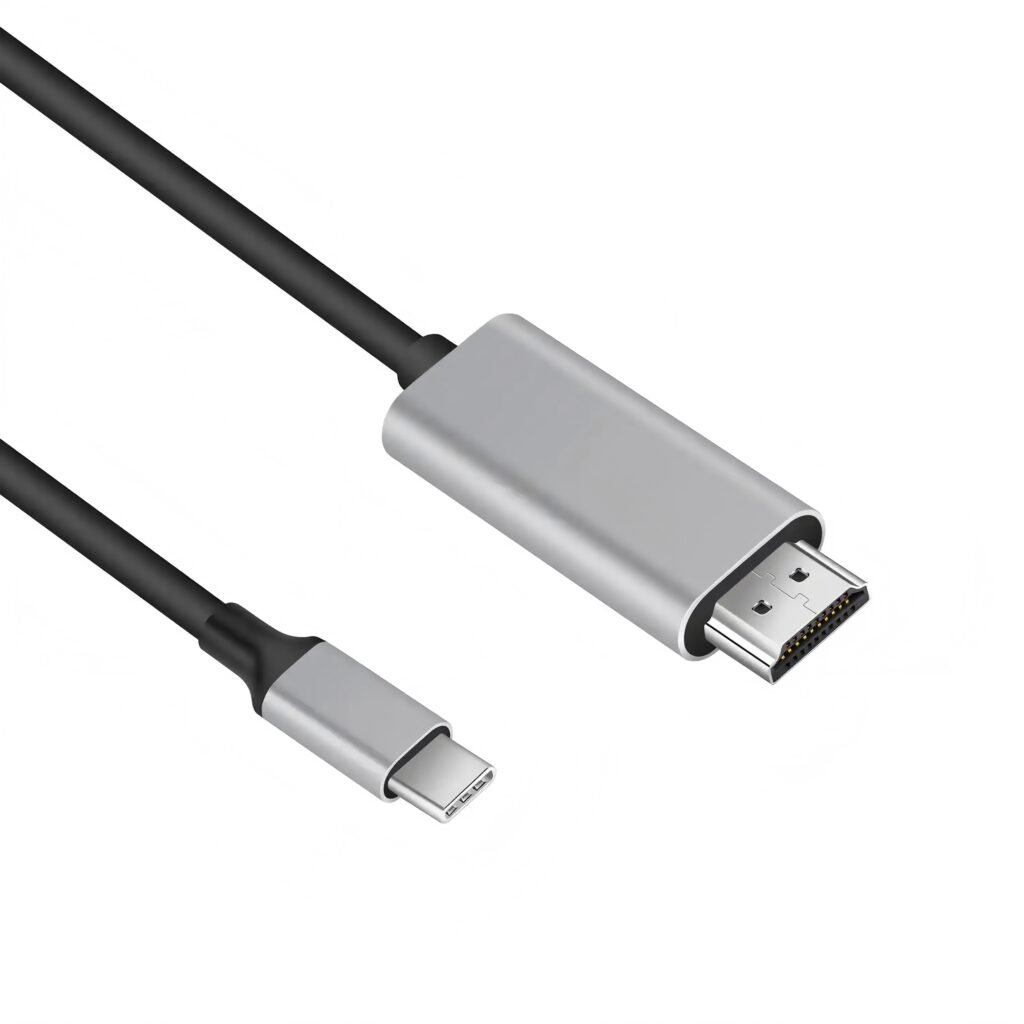
A USB-C to HDMI cable, such as those offered by cable c, allows you to connect a device equipped with a USB-C port (like a laptop, smartphone, or tablet) directly to an HDMI display. These cables support resolutions up to 4K at 60 Hz, delivering sharp, detailed images and immersive sound on larger screens.
Unlike traditional adapters, a direct Type-C to HDMI cable uses DisplayPort Alternate Mode (DP Alt Mode) to convert the USB-C video signal into an HDMI-compatible format. This eliminates the need for additional adapters or drivers and ensures a seamless plug-and-play experience. In essence, it acts as a bridge between USB-C devices and HDMI displays, making it easy to expand your visual workspace or share content on a bigger screen.
Key Benefits of Using a USB-C to HDMI Cable (cable c)
High-definition video output — Enjoy crisp visuals in up to 4K resolution at 60Hz.
Audio and video in one cable — No need for extra audio cables.
Simple plug & play setup — No drivers or external power required.
Versatile Compatibility — Connect laptops, tablets, and smartphones to TVs, monitors, and projectors.
Ideal for work and entertainment — Perfect for streaming, gaming, multitasking, and office presentations.
Advantages of Using a USB-C to HDMI Cable
A USB-C to HDMI cable, such as the reliable solutions offered by cable c, delivers a range of practical benefits that make it indispensable for both work and entertainment. Here’s a closer look at the key advantages:
Wide Device Compatibility:
Connects effortlessly with USB-C enabled devices—including laptops, tablets, smartphones, and even modern cameras—while outputting to any HDMI-equipped display like TVs, monitors, or projectors.
Streamlined Connectivity:
Eliminates the need for multiple adapters or extra wiring. With a single cable c USB-C to HDMI connection, you get both video and audio transmission, reducing desktop clutter and simplifying setup.
Perfect for On-the-Go Use:
Lightweight and compact, these cables are ideal for mobile professionals and students who need quick plug-and-play access for meetings, classroom presentations, or travel.
Ultra-High Definition Output:
Supports resolutions up to 4K and even 8K (model dependent), ensuring crystal-clear picture quality, smooth frame rates, and impressive detail—ideal for streaming, design work, or gaming.
Synchronized Audio & Video:
Ensures lag-free delivery of both high-definition video and multi-channel audio, providing an immersive entertainment and productivity experience without the need for separate sound connections.
How to Choose the Best USB-C to HDMI Cable
To get the most out of your setup, it’s important to pick a high-quality USB-C to HDMI cable that suits both your device and your usage scenario. Here are the key factors to consider to ensure peak performance.
Compatibility Check
First, confirm that your USB-C device supports video output via DisplayPort Alternate Mode (DP Alt Mode). Not all USB-C ports support video. Also, make sure the HDMI end fits your display’s port (standard HDMI vs. mini HDMI).
Resolution & Refresh Rate Support
Choose a cable that matches your required video quality — whether that’s Full HD (1080p), 2K (1440p), 4K, or 8K. For gaming or fast-moving content, look for models that offer higher refresh rates such as 60 Hz or 144 Hz to eliminate motion blur.
Durable Construction
Go for cables made with premium materials for longer lifespan. A dependable example is cable c’s double-braided USB-C to HDMI series, which features aluminum alloy connectors and reinforced nylon sheathing — built to resist bending, corrosion, and wear-and-tear from frequent plugging and unplugging.
Appropriate Length
Match the cable length to your setup: 0.5–1 m for laptops or close monitors, 2 m or longer for wall-mounted TVs or distant displays. Avoid excessively long cables, as they may cause signal degradation.
Extra Functional Features
If you want power and connectivity in one hub, select a cable c model that integrates Power Delivery (PD), allowing you to charge your device while outputting video. Some versions also include additional ports — like USB-A, Ethernet, or SD card slots — for expanded versatility.
Common Issues When Using USB-C to HDMI Cables
While USB-C to HDMI cables are incredibly convenient, users may occasionally face connectivity or performance issues. Here’s how to recognize and troubleshoot the most frequent problems.
- “No Signal” Displayed on Screen
Causes:
Your device’s USB-C port does not support video output (DisplayPort Alternate Mode).
Improper or loose connection.
Resolution settings on the device exceed display capability.
Fixes:
Confirm that your device’s USB-C port supports DP Alt Mode.
Ensure your cable c USB-C to HDMI cable is fully inserted on both ends.
Manually adjust the laptop/tablet resolution and refresh rate to match the monitor or TV.
- Poor or Blurry Video Quality
Causes:
Using a low-bandwidth or poorly shielded cable.
Incorrect resolution or refresh rate settings.
Extended cable length degrading the signal.
Fixes:
Switch to a high-bandwidth, shielded cable (e.g., a premium cable c 4K/8K-rated model).
Align your output settings (e.g., 4K @ 60 Hz) with what your display supports.
Avoid excessively long cables when not necessary.
- Sound Not Playing Through Display
Causes:
Device audio still set to internal speakers.
Using a cable that doesn’t support audio pass-through.
Fixes:
Go to your device’s Sound Settings and select HDMI as the default output.
Ensure you are using a cable c USB-C to HDMI cable that advertises audio + video support, not just video output.
Using a USB-C to HDMI cable is one of the easiest ways to connect a USB-C device to an HDMI-enabled monitor or TV. With just a single cable, you can mirror or extend your screen to enjoy crisp audio-visual output on a larger display. This makes it ideal for streaming movies, conducting meetings, gaming, and delivering professional presentations. By selecting a high-quality cable and understanding how to set it up properly, users can experience smooth video transmission and fewer technical hiccups.
Conclusion
In summary, a USB-C to HDMI cable is a highly practical accessory for expanding your display options. Whether for business or leisure, choosing the correct cable and knowing how to address basic connection problems ensures stable performance and an enhanced visual experience across all your devices.